Tuesday, September 21, 2010

Apply Filter on Category Field in Content Query Webpart which displays Posts

Recently I came across an issue on applying filter on a content query webpart(CQWP) which was configured to show list items from Posts list. The filter which needs to be applied was against the Category column of the post so that the webpart shows on posts of that category.

So I choose,

image but when I click Apply button, the webpart threw an error.

image

To solve this error, and to apply the filter properly we need to add an additional filter property on the .webpart file. Export the webpart to hard disk, open the .webpart file in any text editing tool, find the property tag with name “AdditionalFilterFields”

image

Replace that with

image

Actually we need to add additional filter field PostCategory, which is the internal column name of the category field of posts.

Now save the .webpart file and import this to the webpart page, after this if we go to the modify webpart, and in the additional filter column we will find the PostCategory displayed,

image

Choose that PostCategory, and apply the filter logic,

image Click OK or Apply button to make the changes.

That’s it, now the CQWP will show the posts where category contains Category 1,

image

Thursday, September 16, 2010

Very useful and easy tool to take screen snap shots

Hi All, I found it very useful and easy to use Screen Clipper http://www.screenclipper.com/ to get the screen snap shots. This is free application.

Technorati Tags: ,

Wednesday, August 25, 2010

VS2010 not showing some menu items (like Build, Refractor etc)

While I started exploring VS2010, I found that menu is missing some items such as Project Build, Refractor and some shortcut icons.

image

Actually it is hidden due to the menu bar is loaded with the basic setting by default, to change this Tools –> Settings

image

Change it to Expert Settings and there it is, the menu bar is loaded with our familiar items.

image

Technorati Tags: ,

.Net 4.0 Chart Control – Visual Studio 2010

Hi folks, I am pretty excited to start using my Visual Studio 2010 Express Edition on my Windows XP machine. It is quite thrilling that I can use express edition for windows phone 7 only on Windows Vista and higher, the possibility of creating silverlight based application for windows phone 7 is really huge. I would love to post something on windows phone 7 once I set up my environment. But this post is not targeting windows phone or silverlight, this one is for .Net 4.0 Chart control and how to create a simple chart using Visual Studio 2010.

image

The chart control which is available out of the box with the visual studio tools is quite powerful and impressive. Lets start with creating a C# windows project, and drag and drop the chart control to the windows form.

Name the chart control, say “chrtMain”, in the sample I am loading the chart on click of a button, so add another button and name it as btnLoad. On the button click event of Load button, the chart loading is happening. The code snippet can be found below.

ChartControl’s Series property (which is SeriesCollection class) denotes each row in the chart, if we want to show many rows then it should contain that many series. And the Series Class’s Point property indicates each column in the Series. If the above was confusing please bare with me :-)

Basically I created an entity class, (here an Shop Entity Class)

public class ShopEntity
{
    public string ShopName { get; set; }
    public double SalesAmount { get; set; }
}

Later a property is added to the formClass which will hold the information.

public List<ShopEntity> ShopEntities { get; set; }

And later on the button Click event of the Load button, the chart generation code is written.

private void btnLoad_Click(object sender, EventArgs e)
{
    this.chrtMain.Series.Clear();
    this.ShopEntities = new List<ShopEntity>();

    Series series = new Series("Shop Sales");
    this.ShopEntities.Add(new ShopEntity { ShopName = "McDonald's", SalesAmount = 100050.50 });
    this.ShopEntities.Add(new ShopEntity { ShopName = "Burger King", SalesAmount = 50050.75 });
    this.ShopEntities.Add(new ShopEntity { ShopName = "KFC", SalesAmount = 75050.95 });

    int i = 1;
    foreach (var shopEntity in this.ShopEntities)
    {
        DataPoint dataPoint = new DataPoint(i++, shopEntity.SalesAmount);
        dataPoint.AxisLabel = shopEntity.ShopName;
        dataPoint.ToolTip = string.Format("{0}''s total sale amount is {1}", shopEntity.ShopName, shopEntity.SalesAmount);
        series.Points.Add(dataPoint);
    }

    this.chrtMain.Series.Add(series);
}

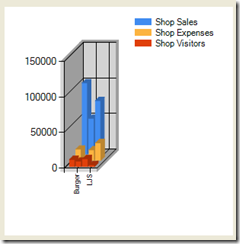
And the final output of this chart will like as shown below,

image   With a single series
     
     
image   With multiple series

Friday, August 20, 2010

Modifying the ItemStyle.xsl causes the Summary Links Webpart to crash.

Scenario : An additional presentation template was added for rendering the Content Query Webpart which used the shared parameter value SiteUrl to build the link. The template was good enough and the content query webpart worked perfectly. But interestingly soon after this change, the Summary Links webpart stopped working. It showed this message "Unable to display this Web Part. To troubleshoot the problem, open this Web page in a Windows SharePoint Services-compatible HTML editor such as Microsoft Office SharePoint Designer. If the problem persists, contact your Web server administrator."

While checking the ULS (Unified Logging Service) Log files under in 12 Hive\Logs folder, the error logged was this,
“w3wp.exe (0x015C)  0x06B0    Windows SharePoint Services       Web Parts                         89a1    Monitorable    Error while executing web part: System.Xml.Xsl.XslLoadException: The variable or parameter 'SiteUrl' is either not defined or it is out of scope. An error occurred at http://servername/Style Library/XSL Style Sheets/ItemStyle.xsl(471,4).     at System.Xml.Xsl.XslCompiledTransform.LoadInternal(Object stylesheet, XsltSettings settings, XmlResolver stylesheetResolver)     at System.Xml.Xsl.XslCompiledTransform.Load(XmlReader stylesheet, XsltSettings settings, XmlResolver stylesheetResolver)     at Microsoft.SharePoint.WebPartPages.DataFormWebPart.GetXslCompiledTransform()     at Microsoft.SharePoint.WebPartPages.DataFormWebPart.PrepareAndPerformTransform() “

What was happening was that while transforming the Summary Links webpart (which didn't used the new XSL template added) it kept crashing since it couldn't find the variable SiteUrl.

Solution: If you are willing to unghost the xsl files then use sharepoint designer to open the SummaryLinkMain.xsl (which can be found under Style Library\XSL Style Sheets folder in designer) or if you are worried about unghosting then find the SummaryLinkMain.xsl under the 12 Hive folder, TEMPLATE\FEATURES\PublishingResources.
Open the file SummaryLinkMain.xsl in any text editor, and find the top section where the <xsl:param ... /> tags can be seen.
Append the following tag just below any existing <xsl:param ... /> tag
<xsl:param name="SiteUrl" />

Save the file and Refresh the file if you have unghosted using Sharepoint Designer, else do an IISRESET and then refresh the page.

Now the Summary Links webpart is back to working without any issues.

More Information: The MSDN document has mentioned how the xsl files are related.

http://msdn.microsoft.com/en-us/library/ms551040.aspx